

WebRTC Load Testing Explained
Load testing is a vital part of web and software development that helps ensure strong performance for the end user. Testing performance under different loads provides valuable insight into websites and applications and allows areas for improvement to be identified. Because WebRTC applications depend on real-time communication, performance testing must account for latency, jitter, connection stability, and media quality under concurrent usage.
Ensuring the proper tools and methods are used to implement load testing is crucial for accurate performance analysis. As audio-video platforms, webinars, live streaming, telehealth, online education, and collaboration tools continue to grow, testing application performance before release is more important than ever.
When it comes to load testing tools, there is no shortage of options to choose from. This guide will discuss WebRTC load testing and how LoadView can help emulate audio and video streaming scenarios for more realistic performance testing.
What Is WebRTC?
WebRTC, also known as Web Real-Time Communications, is an open-source technology that enables real-time voice, video, and text communication between different devices and browsers. It is commonly used for video conferencing, live chat, telehealth, online learning, customer support, and other applications that require real-time communication.
WebRTC provides APIs that developers can use with JavaScript to establish stable peer-to-peer (P2P) communication between browsers and applications. Testing should also simulate real-world conditions such as varying bandwidth, packet loss, device differences, and geographic distribution to accurately measure performance.
WebRTC handles many complex communication processes, including compatibility, device support, and video, audio, and text transmission. It does this without requiring third-party plugins, custom interfaces, or complex integration processes. This makes it easier for users to establish real-time connections directly through a browser.
How Does WebRTC Work?
WebRTC uses a combination of JavaScript, APIs, and HTML to embed communication technologies into web browsers. These systems help provide seamless video, audio, and text communication between browsers and devices. It is compatible with major web browsers, including Google Chrome and Firefox.
While using WebRTC, video, audio, and text data can be accessed across multiple devices. This allows P2P connections to be initiated and monitored between devices using web browsers. Bi-directional data transmissions across multiple data channels can also be facilitated in the browser.
Using P2P communications, video, audio, and text data transfers between devices can happen in real time, even if users are on different IP networks. This includes users on different networks using Network Address Translation firewalls that support real-time communication through Session Traversal Utilities for NAT (STUN) servers.
On networks where STUN servers are restricted, WebRTC may use Traversal Using Relays around NAT (TURN) servers. A more detailed diagram of how WebRTC works can be found below:
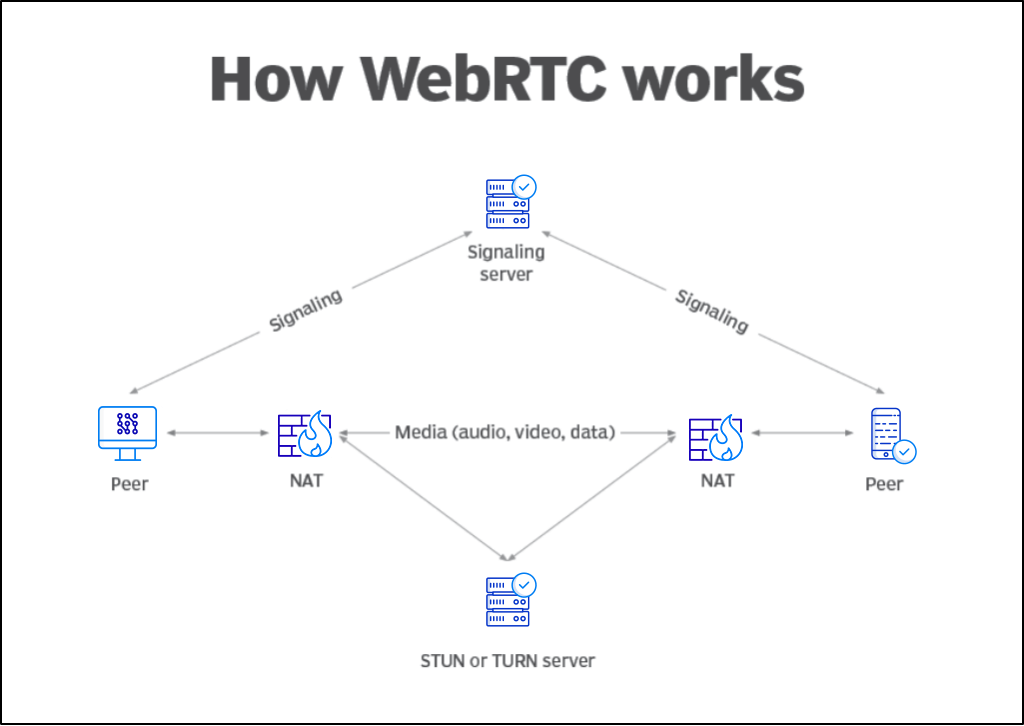
When To Use WebRTC
WebRTC is most commonly used to establish P2P communication using video, audio, and text data in real time through web browsers. There are also many other situations where WebRTC can be beneficial.
The healthcare industry is a good example of how WebRTC can be used practically in many different situations. Healthcare monitoring and virtual patient checkups are made possible by WebRTC. It is also commonly used for video calls, chats, and conferences on platforms such as Google Meet, Zoom, or Slack.
The security industry also uses WebRTC to connect security cameras and browsers and establish communication between them. Online education, live support, remote work, and real-time media streaming also make heavy use of WebRTC technology.
Why Is WebRTC So Popular?
WebRTC is popular for several reasons. Many businesses prefer WebRTC over similar technologies because it is relatively easy to use and does not require users to install separate plugins. WebRTC can reduce the work required to support real-time communication in browsers, which can save time and development effort.
It also allows for bandwidth adjustments based on network conditions across different web and mobile browsers. Compatibility is another major advantage that WebRTC has over some similar technologies, as it can be used with major operating systems and browsers.
One of WebRTC’s biggest advantages is its free-to-use, open-source format. Because it is accessible and versatile, WebRTC has become a popular technology for web and application developers.
WebRTC Load Testing Challenges
WebRTC does have some areas where it runs into limitations. While it is versatile and capable, there are situations where WebRTC may not perform optimally. For example, WebRTC applications often depend on stable real-time connections. Networks with lower bandwidth, packet loss, or high latency may encounter issues when establishing or maintaining a connection. Testing should simulate varying network conditions such as bandwidth limitations, packet loss, latency, and geographic distance to reflect real-world usage.
Another factor that must be considered is the cost and complexity of supporting WebRTC infrastructure. While WebRTC supports peer-to-peer communication, many real-world applications also rely on signaling servers, STUN/TURN servers, media servers, APIs, and backend services. These supporting systems must be tested under load to ensure video and audio quality remain consistent during high usage.
Load Testing and Monitoring With WebRTC
Load testing is a vital part of the process when developing applications that offer video conferencing and communication features. Testing these types of applications is not always easy, but it is essential for ensuring that the application can manage a high number of users reliably.
Manual testing is typically not practical because it is only possible to cover a limited number of scenarios without software. Because of this, developers typically use tools like LoadView to properly test communication applications and simulate realistic user activity.
LoadView includes features that make testing applications for audio and video scenarios easier. The following sections detail how you can test an application using WebRTC and LoadView to emulate audio and video streaming for more accurate load testing.
How Load Testing With WebRTC Works
Using LoadView, video and audio streaming can be emulated in-browser for testing purposes. Developers may request webcam and microphone access to create streams that emulate users by adding them to the stream.
This is made possible by using pre-recorded user audio and video sequences in-browser. Since LoadView does not feature a public library, pre-recorded files must be made available by the user from a public database before testing can begin.
Once the pre-recorded file has been uploaded to a public database, LoadView can access it via URL and download it to a server. Once stored on the server, this file will be opened in a new browser window to emulate the hardware needed to capture audio and video.
The following pre-recorded audio files can be uploaded and used during testing:
- 30 Seconds – https://d149yd38g6ldk.cloudfront.net/30sec.wav
- 1 Minute – https://d149yd38g6ldk.cloudfront.net/1min.wav
For video testing, the following pre-recorded files can be uploaded and used:
- 30 Seconds – https://d149yd38g6ldk.cloudfront.net/WebCam30s.y4m
- 1 Minute – https://d149yd38g6ldk.cloudfront.net/WebCam1m.y4m
Please note that if you are using your own pre-recorded audio or video files, the maximum supported file size is 20MB. Video files must be in Y4M format and audio files must be in WAV format.
Recording The Test Script
The following steps can be used to record a test script for load testing with LoadView and WebRTC.
1. Download the EveryStep Scripting Tool for desktop. A detailed download and installation guide can be found here.
2. Using the EveryStep Recorder, map out a recording that opens a preferred video conferencing application.
3. Begin a media streaming session in the preferred application.
4. Save the script before continuing.
5. Copy and paste the following methods to implement the media stream emulation. These methods will also need to be added before the navigation lines on the web application:
tab0.Download (string wavFileName, string wavFileURL);
tab0.Download (string y4mFfileName, string y4mFileURL);
UseFileForFakeMediaCapture (MediaType.Camera, string y4mFileName);
UseFileForFakeMediaCapture (MediaType.Microphone, string wavfileName);
6. To reserve more time for media streaming, the following delay line can be added:
// script_version=3.0; everystep_version=4.0.8370.4032; date=4/23/2023; Chrome=104.0.5112.57; Use System Credentials
Tabs.SetSize (1768, 876);
DMBrowser tab0 = null;
7. Once you are finished, you should have a script that looks similar to the following:
Step (1, "Webcam Test - Check Your Camera With Our Online Tool - https://www.onlinemictest.com/webcam-test/");
tab0 = Tabs.NewTab ();
//Download a test audio file
tab0.Download ("30sec.wav", "https://d149yd38g6ldk.cloudfront.net/30sec.wav");
//Download a test video file
tab0.Download ("WebCam30s.y4m", "https://d149yd38g6ldk.cloudfront.net/WebCam30s.y4m");
//Emulate a webcam video stream and mic audio
UseFileForFakeMediaCapture (MediaType.Camera, "WebCam30s.y4m");
UseFileForFakeMediaCapture (MediaType.Microphone, "30sec.wav");
tab0.GoTo ("https://www.onlinemictest.com/webcam-test/");
//Click a button to allow access to webcam
tab0.Div ("//DIV[@ID=\"webcam-start\"]",

"//DIV[@ID=\"fullscreen_close\"]/following-sibling::DIV[1]",

"//DIV[@ID=\"fullscreen_open\"]/following-sibling::DIV[2]").Click ();
Delay ("10sec".ToDuration ());
WebRTC Load Testing – Wrapping It All Up
Properly testing video and audio conference applications is vital to ensure stability and optimal performance. LoadView is useful for testing these types of applications because it can help emulate audio and video streaming scenarios and simulate concurrent user behavior.
Boost your application’s capabilities with the power of WebRTC and LoadView. See how LoadView can help test video and audio communication applications before performance issues reach users. Request your free LoadView demo today and improve confidence before launch.
Take Your Load Testing to the Next Level
Next Level
Experience unparalleled features with limitless scalability. No credit card, no contract.